My 2026 Dev Setup: Custom Claude Code Workflows
Triple-monitor hardware, 5 MCP servers, and custom Claude Code skills that cut feature delivery time from days to hours. The full 2026 developer setup.
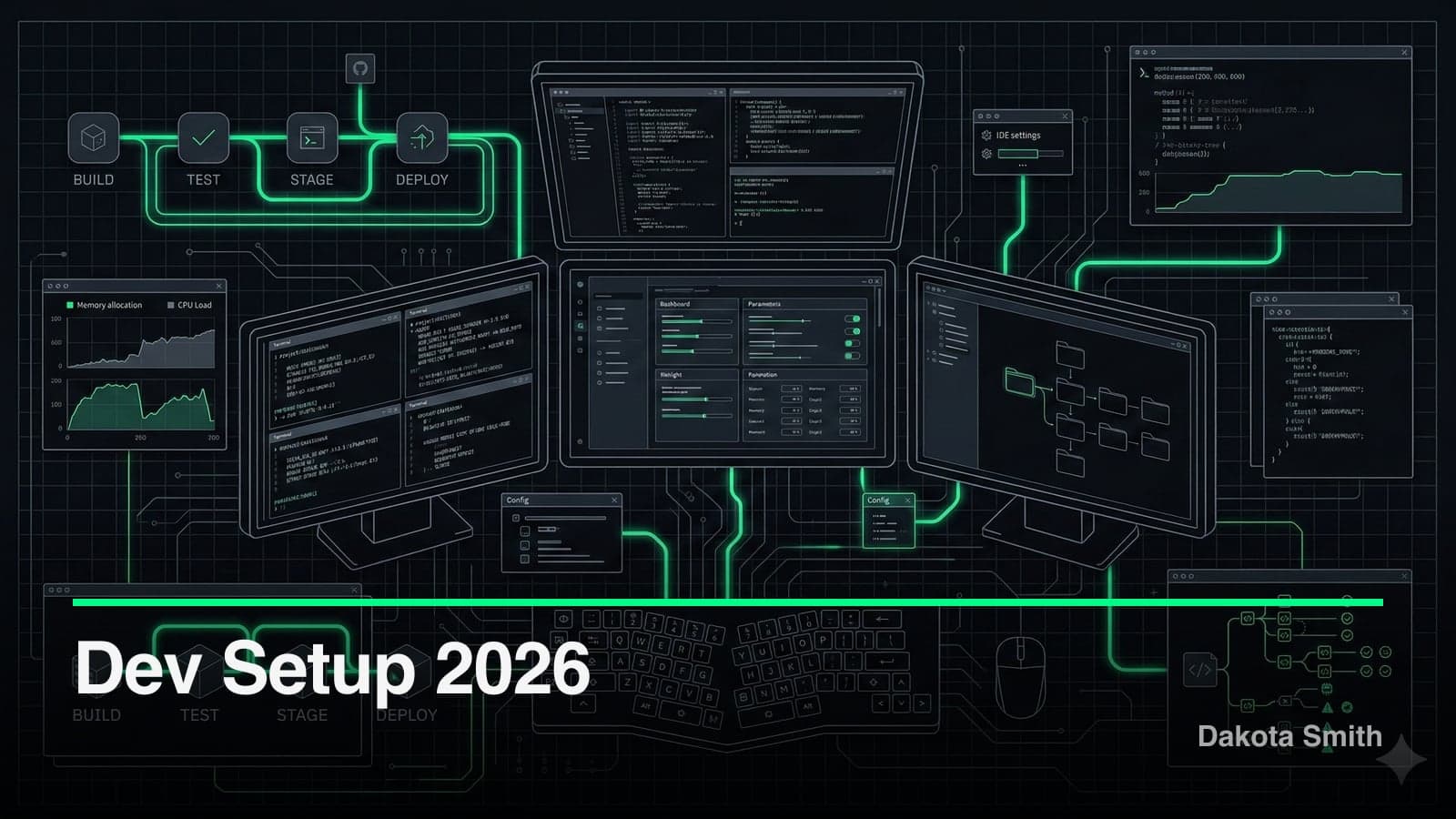
Build a custom skill: 30 minutes. Time saved per use: 5-10 minutes. Uses per week: 10+. Breakeven: one week.
That's the ROI math behind every Claude Code customization in this setup. Boris Cherny, the creator of Claude Code, describes his setup as "surprisingly vanilla." Mine is the opposite: multi-machine hardware, 5 MCP servers, and custom skills that turn Claude Code into an autonomous development partner. I built APL, a CMS analysis marketplace, and STUDIO. Claude Code now handles entire features while I review the output.
The Multi-Machine Setup
| Machine | Role | Primary Use |
|---|---|---|
| Desktop PC | Primary workstation | Triple-monitor focused development |
| Work Laptop + VM | Remote-capable | Environment isolation, client work |
| M1 MacBook Pro | Mobile | Away-from-desk development |
The common thread: Cursor runs on all three. Having a consistent editor across machines reduces friction when switching contexts. Cursor handles inline completions while Claude Code tackles larger tasks—complementary tools, not competing ones.
Terminal and Shell
iTerm2 + Zsh + Oh My Zsh
# Key Oh My Zsh plugins
plugins=(
  git
  zsh-autosuggestions
  zsh-syntax-highlighting
)
The autosuggestions plugin alone saves hours per week. Type a few characters, hit right arrow, command complete. Syntax highlighting catches typos before execution.
I haven't switched to Warp, Ghostty, or other modern terminals. iTerm2 handles everything I need: split panes, search, profiles per project. New tools need to offer substantial improvement to justify switching costs—a principle that applies to choosing any tool in the AI dev ecosystem.
Editor: Cursor + Claude Code
Cursor started as a VS Code fork with AI features. It's matured into an editor designed around AI-assisted development. Key advantages over vanilla VS Code:
- Tab completion that understands context: Cursor's completions consider your entire codebase, not isolated files
- Inline edits with Cmd+K: Describe a change, see the diff, accept or reject
- Composer for multi-file changes: When a task touches several files, Composer handles the coordination
Cursor and Claude Code complement rather than compete:
| Task | Tool |
|---|---|
| Line-level completions | Cursor |
| Small refactors (single file) | Cursor Cmd+K |
| Multi-file features | Claude Code |
| Autonomous development | APL via Claude Code |
The boundary isn't rigid. Match the tool to the task.
Claude Code Configuration
Here's where the setup diverges from vanilla.
MCP Servers
Five MCP servers extend Claude Code's capabilities:
| MCP Server | Purpose |
|---|---|
| GitHub | PRs, issues, repo management without leaving Claude Code |
| Filesystem/Memory | Persistent context between sessions, project-specific memory |
| Database | Direct query access during development, schema introspection |
| Context7 | Enhanced context management for large codebases |
| Pencil.dev | Design-to-code workflow, visual verification of UI implementations |
Each server eliminates a context switch. Without GitHub MCP, every PR review requires switching to a browser. Without Database MCP, every schema question requires a separate terminal. Five servers, five fewer reasons to leave Claude Code.
Custom Skills and Hooks
Beyond MCPs, custom skills and hooks transform the workflow:
Skills (slash commands)
| Skill | Purpose | Time Saved |
|---|---|---|
/meta | APL orchestrator—plan, execute, review | Hours per feature |
/write-post | Blog content creation with brand validation | 30 min per post |
/review-post | Content quality checks against brand guidelines | 20 min per review |
/content-strategist | SEO and content planning | 45 min per analysis |
The /meta command alone transformed my workflow. Instead of manually orchestrating Claude Code through 15+ subtasks, I describe the goal and watch the phases unfold:
# Before APL: 15-20 manual prompts per feature
> "Create the user model"
> "Now add the authentication middleware"
> "Now write tests for the auth flow"
> "Now fix that import error"
> ...repeat 15 times...

# After APL: one command
> /meta Add user authentication with JWT tokens
# APL handles: planning, coding, testing, review, learning
Hooks automate session boundaries:
- Session end hooks trigger learning extraction to
.apl/patterns/ - Pre-commit hooks run validation
- Context-gathering hooks populate project state on session start
Building skills follows the Agent Skills Standard, which defines a consistent interface for composable, shareable automation. The power user guide covers the architecture in depth.
The APL Workflow in Practice
APL is the centerpiece of my Claude Code customization. Here's how it fits daily work:
Morning: Review overnight changes, check APL session logs in .apl/session-logs/
Feature work: /meta with goal description, monitor progress, answer escalation questions
Code review: APL's reviewer catches issues before I see the PR
Learning: Insights persist to .apl/ for future sessions
The workflow isn't "fire and forget." I monitor active sessions, answer escalation questions, and review decisions. The mechanical work—boilerplate, tests, lint fixes—happens autonomously. APL built this entire blog using that workflow: 47 stories, 6 sessions, 2 hours of human input.
| Scenario | Approach |
|---|---|
| Quick bug fix | Vanilla Claude Code |
| Single function | Cursor inline edit |
| New feature with multiple files | APL |
| Refactoring across codebase | APL |
| Exploring unfamiliar code | Vanilla with questions |
| Production deployment | Manual (never autonomous) |
Design Workflow with Pencil.dev
Pencil.dev closes the design-to-code loop:
- Design first: Create the component in Pencil's canvas
- Generate code: Claude Code reads the design via MCP, generates React/Tailwind
- Verify visually: Compare implementation to design in Pencil
No more "it looks different than the mockup" conversations. The mockup and the code stay synchronized. For this blog, Pencil handles component design before implementation, visual regression checking, and design system consistency verification.
What I Removed
The setup evolved through subtraction:
| Removed | Reason |
|---|---|
| Complex terminal prompt (Starship, Powerlevel10k) | Distracting. A prompt with git status suffices. |
| Multiple browser profiles | One profile with containers for isolation. |
| Elaborate git aliases | gh CLI handles most workflows better. |
| Docker Desktop | CLI docker commands work. The GUI adds overhead. |
| Note-taking apps for dev notes | Code comments and markdown files in the repo. |
Each removal reduced cognitive load. The best tools are invisible—they don't demand attention.
The Tradeoffs
Heavy customization carries specific costs:
Customization creates friction in shared environments. My config includes 5 MCP servers, custom skills, and APL-specific hooks. Pairing on another developer's machine means working without these tools—or spending 20 minutes installing them. For teams, the customization tax is real. Shared skills need documentation; personal ones don't.
Multi-machine sync is manual and that's a deliberate choice. I don't use a dotfiles repo. Settings sync is ad-hoc: copy what I need, when I need it. The friction of maintaining sync scripts outweighs occasional manual copies when switching machines daily at most. If you switch machines hourly, invest in proper dotfiles.
APL creates platform lock-in. The .apl/ directory, learned patterns, and phased workflow are specific to Claude Code. Switching to a different AI coding tool means abandoning accumulated project knowledge. For projects with 20+ APL sessions of learned patterns, that's a significant switching cost.
5+ MCP servers require documentation for onboarding. Each server has configuration requirements, authentication setup, and interaction patterns. New team members need a guide explaining what each MCP provides and how they compose. Without documentation, the setup is opaque.
Key Takeaways
- Customize Claude Code aggressively. The "vanilla is fine" approach works for basic tasks. Skills, hooks, agents, and MCPs enable workflows that weren't possible before.
- ROI math justifies every customization. 30 minutes to build, 5-10 minutes saved per use, 10+ uses per week = one-week breakeven. Track it.
- Multi-machine setups work without elaborate sync. Match the tool to the task, accept manual sync, and move on.
- Cursor and Claude Code complement each other. Cursor for inline completions and small edits. Claude Code for multi-file features and autonomous development.
- Subtraction matters as much as addition. Every removed tool reduces cognitive load. The best tools are invisible.
The trend is clear: AI tooling rewards customization. Build the workflow that matches how you think, not the workflow the defaults provide. Start with Skills if you haven't explored them—they're the lowest-friction entry point to reshaping Claude Code around your workflow.
You Might Also Like
Building Plugin Architect: A Zero-Code Claude Code Plugin
Discover how 30KB of prompt engineering replaced a SQLite-backed codebase to become a complete plugin design system for Claude Code's 6 extension points.
Building Plugin GTM: A Go-To-Market Engine Inside Claude Code
Learn how I built a 29-tool MCP server that handles product analysis, GTM strategy, content generation, and launch tracking without leaving the terminal.
Building Plugin Ops: A Claude Code Plugin for Plugin Maintenance
Explore how I built a 32-tool MCP server with health scanning, issue tracking, release management, and operational runbooks for Claude Code plugins.
Comments
Loading comments...